
Overview
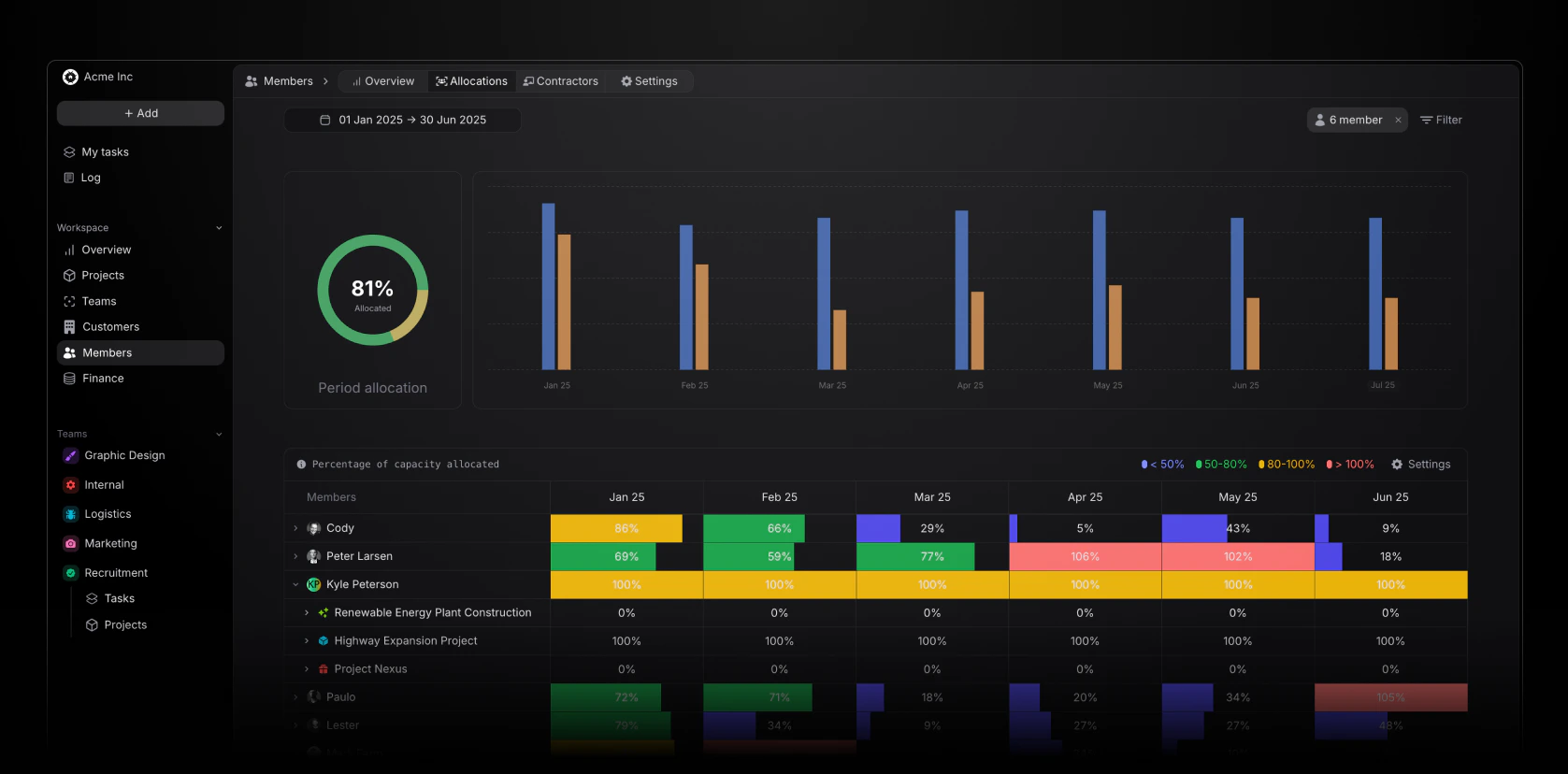
In Member -> Allocations, admin and managers can view a real-time capacity overview of all members in your workspace. The page is structured as follows: A pie chart and bar chart showcasing the total booked hours versus the availble capacity from members (adjusts to filters applied). A list view of all members and their associated booked versus available hours (adjusts to filters applied). Expanding each member showcases on what projects and tasks their bookings are effective on. This view can be filtered im various ways to extrct from it the right information that will help you better plan ahead.Filters
You can filter the members allocations page by:- Time period
- Project(s)
- Member(s)
- Team(s)
- Position(s)
- Skills(s)
Settings
In the members table (settings), you can choose from the following ways to show allocations and capacity:- Weekly impact (instead of the default monthly)
- Show remaining hours available to be booked (instead of the default hours already booked)
- Show booking and capacity in percentage or hours