
Overview
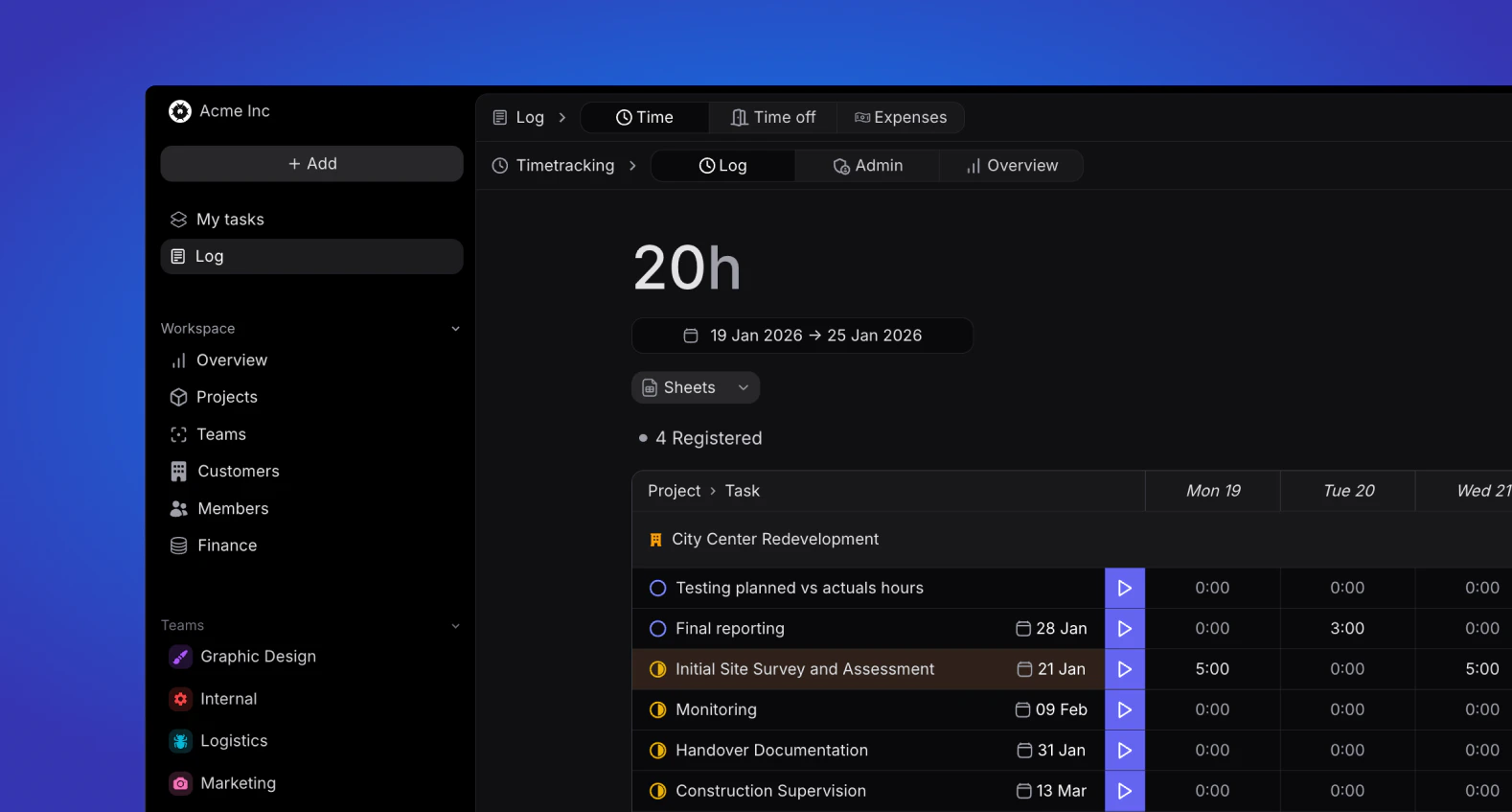
Each of the below tabs are structured in the following sub-tabs:- Log - This is where individual users will log/register their relevant activity to that tab.
- Admin - This is where admin and manager roles can view all user registered data and approve or reject items e.g time entries, pto requests or expenses.
- Settings (only for time-off and expenses) - This is where admin and manager roles can configure the relevant tab.
Time Tab
The Time tab allows you to track and manage your working hours across projects and tasks. It includes three key sections:Log
In the Log section, you can record the time spent on various tasks and projects. Key features include:- Custom Time Periods: Select your preferred time frame for logging hours—daily, weekly, or monthly views are available to suit your workflow, with current week being the default option.
- Hour Summary: View a comprehensive summary of your logged hours, helping you track productivity and project allocation.
- Create New Logs: Easily add new time entries with details such as project, task, duration, and description to maintain accurate records of your work.
- Project(s)
- Team(s)
- Task label(s)
- Approval status
Time tracking
Learn more about time entries and how to create them.
Admin
The Admin section displays all time logs that have been submitted for review in the selected time period. Each time entry displays the following information:- Duration and Date: The amount of time registered and the date of entry.
- Task & Project: The name of the task as well as task label(s) associated to the task.
- Approval status: The current stage of the time entry; Registered, Submitted, Approved or Rejected.
- Member & Comments: Who made the time entry and associated comments.
- Approve or reject entries
- Export time entries to CSV
- Summarize using AI
- Delete
Overview
The Overview section provides statistical insights into your logged time:- Visual representations of time spent across different projects
- Productivity trends over days, weeks, or months
- Comparison of estimated versus actual time spent on tasks
- Summary reports that can be exported for reporting purposes
Time-Off Tab
The Time-Off tab helps you manage your leave requests and track available time off. It includes three main sections:Overview
The Overview section allows you to manage your time away from work:- Create Time-Off Requests: Submit new requests by selecting dates, duration, and type of leave
- Calendar View: See your scheduled time off in a calendar format
- Balance Summary: Track your remaining leave allowance across different leave types
Admin
The Admin section helps you track the status of your time-off requests:- Monitor pending, approved, and rejected time-off requests
- View comments or feedback from approvers
- Receive notifications about status changes to your requests
Settings
The Settings section allows you to customize your time-off experience:- Time-Off Types: Create and manage custom leave categories such as vacation, sick leave, personal days, or parental leave
- Holidays: Set up and customize holiday calendars relevant to your location or organization
- Notification Preferences: Adjust how and when you receive alerts about your time-off requests
Expenses
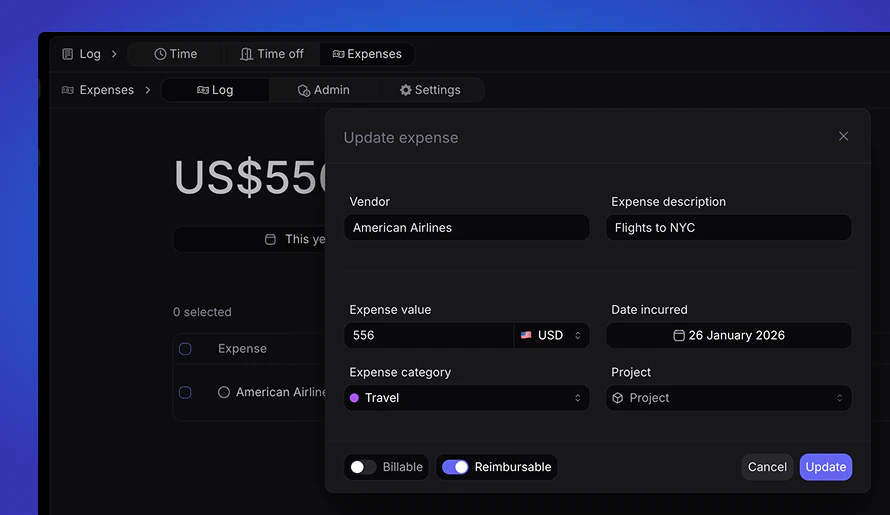
In the expense tab, this is where members can register expenses.Log
The log part of expenses is where users will register expenses. Doing so will provide the option to fill out the following information:- Vendor
- Expense description
- Expense amount and currency
- Date incurred
- Expense category
- Project association
Admin
As an admin and manager user, view all registered expenses. Each time entry line displays the following:- Vendor name
- Expense description
- Associated project
- Created by
- Total amount
- Date of expense