
Private projects
By default, projects in Pike are public - visible to every member of the workspace. When a project is marked as private, it becomes visible only to its members and workspace admins. Private projects are useful when:- Work is sensitive and should be limited to specific people (e.g. executive planning, acquisitions, personnel matters).
- A client engagement requires strict confidentiality between team members.
- You want to reduce noise by keeping certain projects out of everyone’s list of projects.
Creating or changing a private project
Set to private when creating
When creating a new project, look for the Private toggle in the project creation form.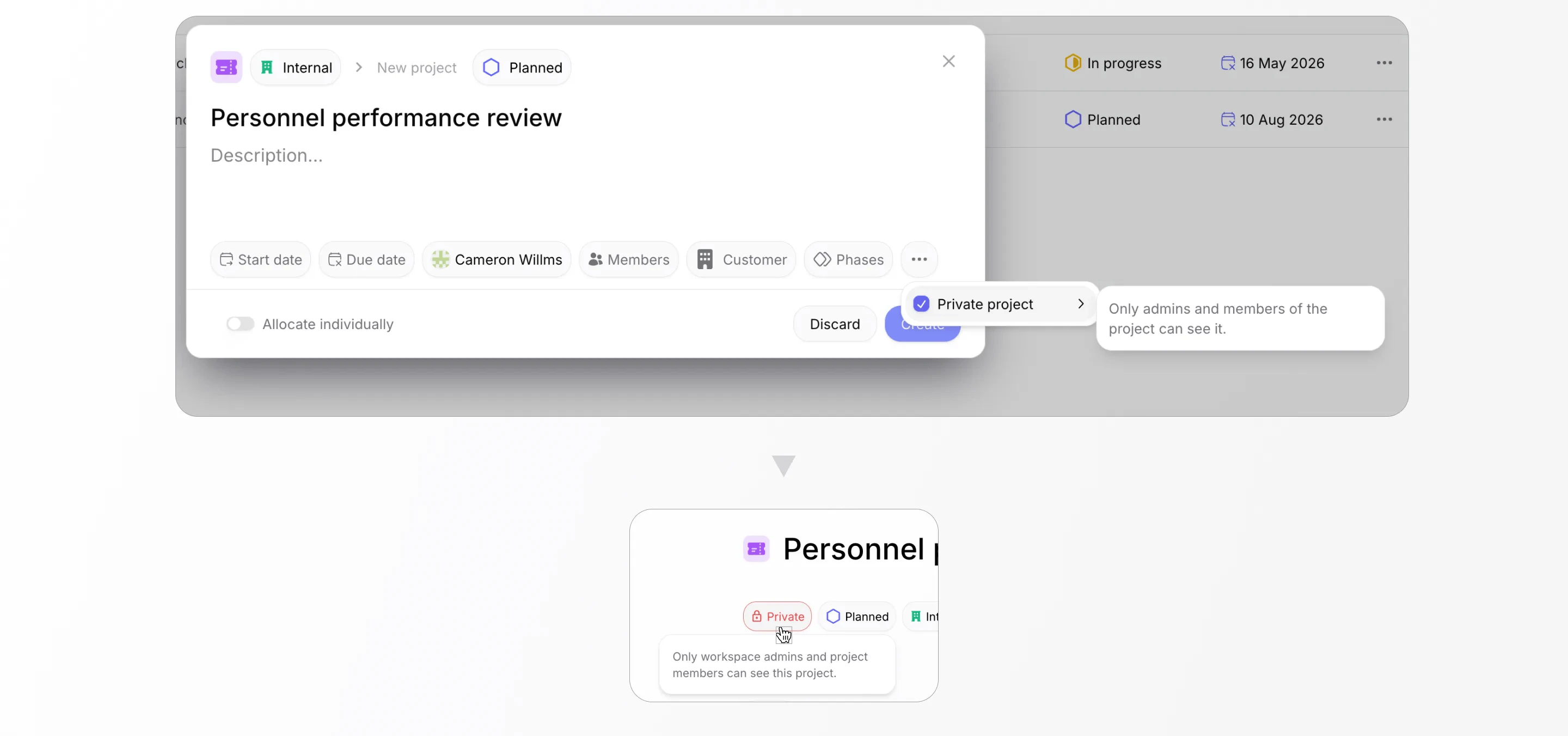
Change privacy after the project exists
After a project is created, you can change privacy by editing the project and clicking the Private badge, or through the options in the three dot menu on the projects list or the top right of the project overview page.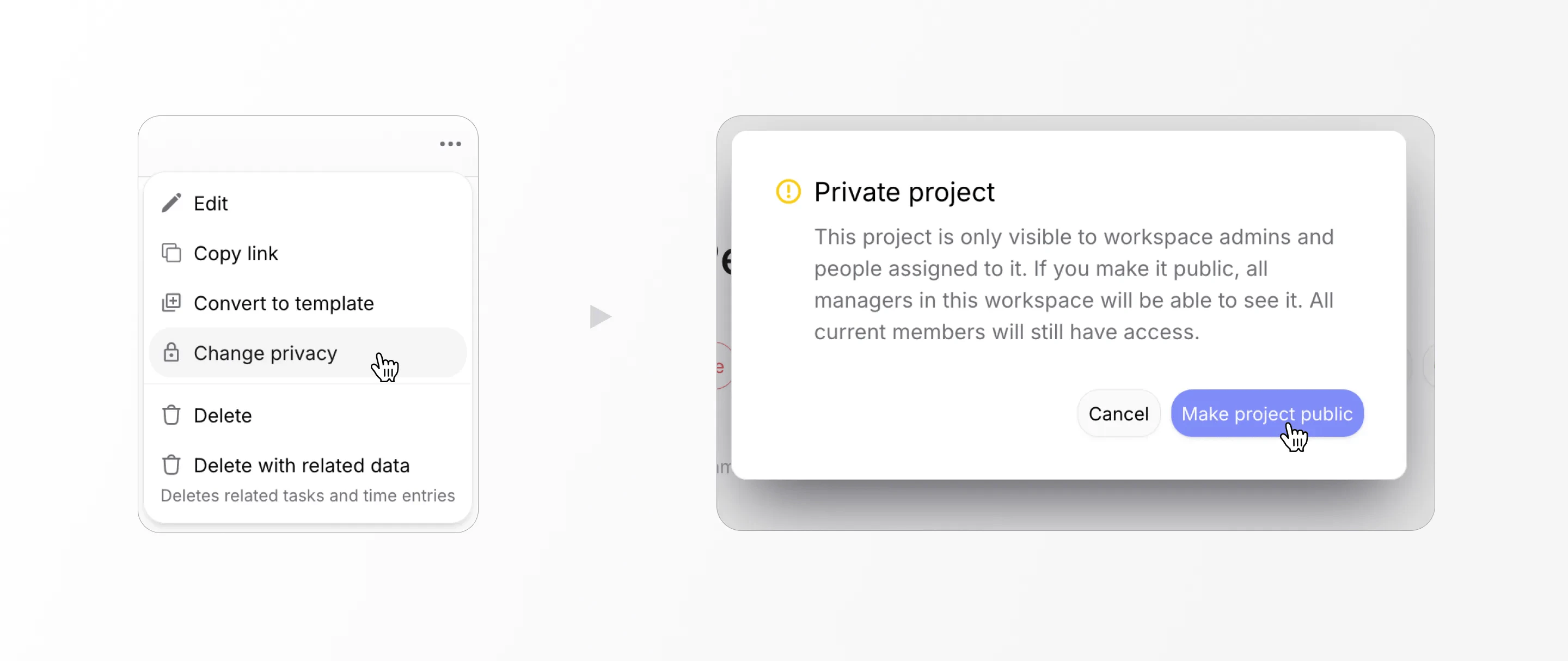
Only Admins and Managers can create projects. To make an existing public
project private, edit the project and enable the Private toggle. Existing
data inside the project will immediately become hidden from non-members.
How visibility works
Public project - Visible to everyone in the workspace. All workspace members can see it in navigation, search, and the workspace overview. Private project - Visible only to:- Admins - always have full visibility
- Explicit project members - users added to the project with a Member or Lead role
- See the project in the sidebar or workspace overview
- Find it through search
- Access it via a direct link or API call
- See tasks, comments, attachments, or any other data belonging to that project
The core rule is simple: if you are not a member of a private project and you
are not an Admin, that project does not exist for you.
Visibility by workspace role
This table shows what each role can see based on project privacy and membership.| Public project (member) | Public project (not a member) | Private project (member) | Private project (not a member) | |
|---|---|---|---|---|
| Admin | Visible | Visible | Visible | Visible |
| Manager | Visible | Visible | Visible | Hidden |
| Finance | Visible | Visible | Visible | Hidden |
| HR | Visible | Visible | Visible | Hidden |
| Basic | Visible | Hidden | Visible | Hidden |
| Guest | Visible | Hidden | Visible | Hidden |
Child content inherits visibility
Tasks, comments, attachments, phases, and all other data inside a private project inherit its visibility. You do not need to mark individual tasks as private. If a task belongs to a private project, non-members cannot see that task - not in task lists, not in search, not via direct URL. Tasks that are not associated with any project are always visible to all workspace members (subject to normal role permissions).FAQ
What happens when I make an existing project private?
What happens when I make an existing project private?
All content inside the project immediately becomes hidden from non-members.
Only users who are already project members (and Admins) will continue to see
it.
Can someone find a private project by guessing the URL?
Can someone find a private project by guessing the URL?
No. Private projects are filtered at the API level. Attempting to access a
private project you are not a member of returns a “not found” response - the
same as if the project did not exist. There is no way to confirm whether a
private project exists.
Do I need to mark individual tasks as private?
Do I need to mark individual tasks as private?
No. Tasks inherit visibility from their project. If the project is private,
all tasks inside it are automatically hidden from non-members.
What about tasks that are not in any project?
What about tasks that are not in any project?
Tasks without a project association are visible to all workspace members,
subject to normal role permissions.
Can a Guest be added to a private project?
Can a Guest be added to a private project?
Yes. If a Guest is added as a project member, they can see that private
project and its contents through guest-accessible features (e.g. viewing tasks
and projects they are assigned to).
Workspace roles
See how workspace roles interact with private project visibility.